Give your desktop a little life.
Play your own photos and videos behind desktop icons and windows.


Turn videos and photos into a moving Mac desktop. Build reusable queues, choose looping and transitions, add background music, and browse Koingo's Media Archive. Control playback from the menu bar.
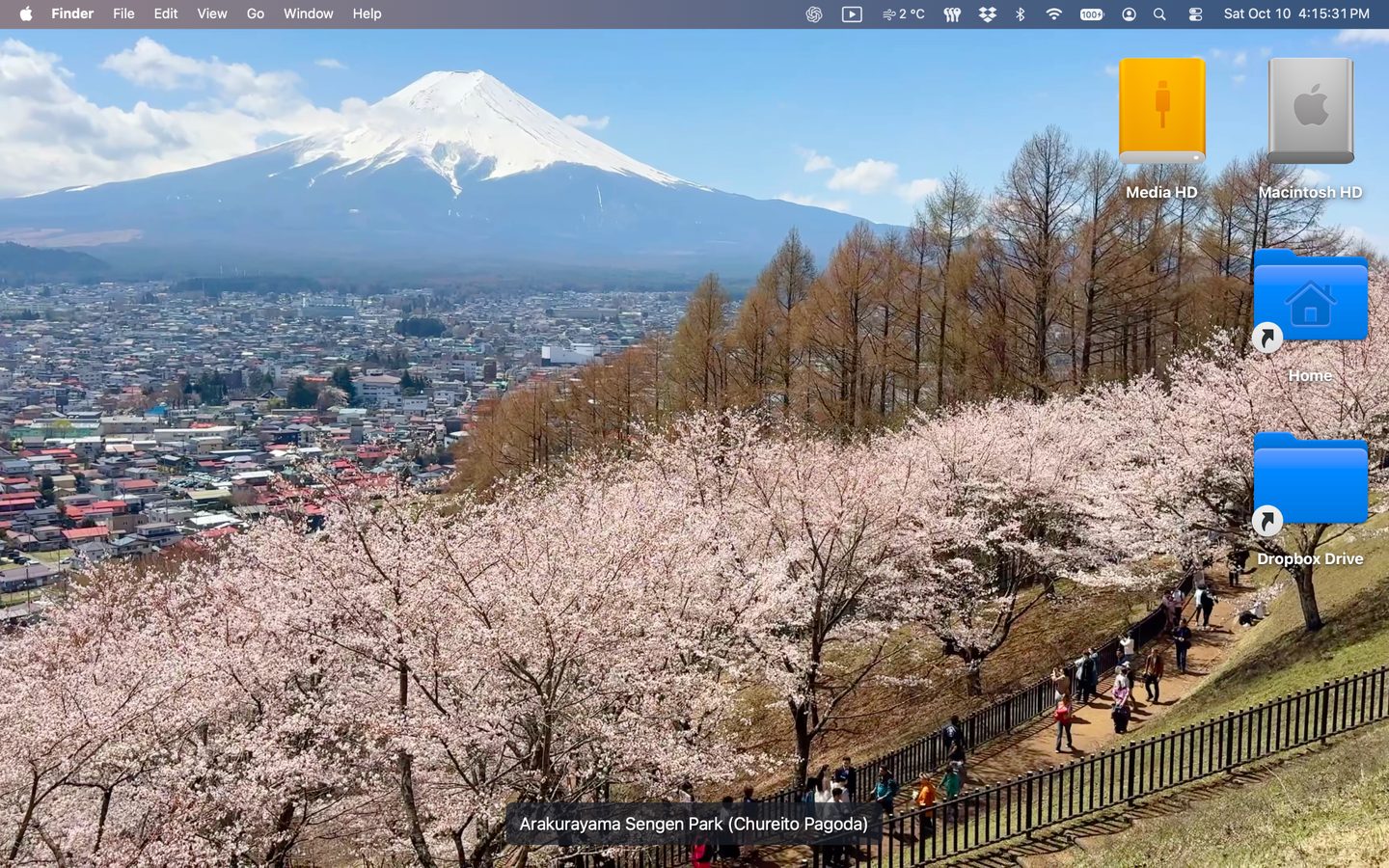
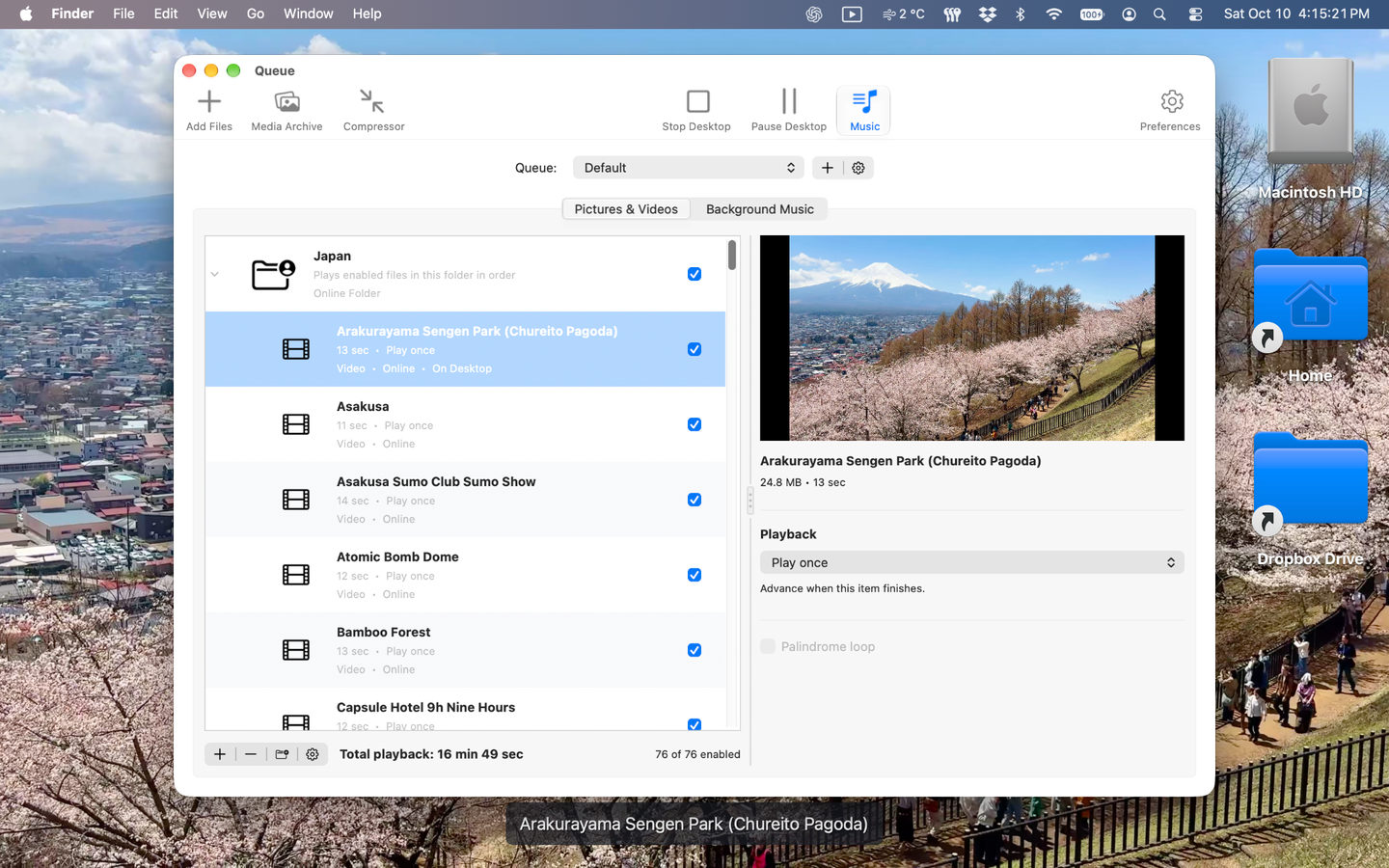
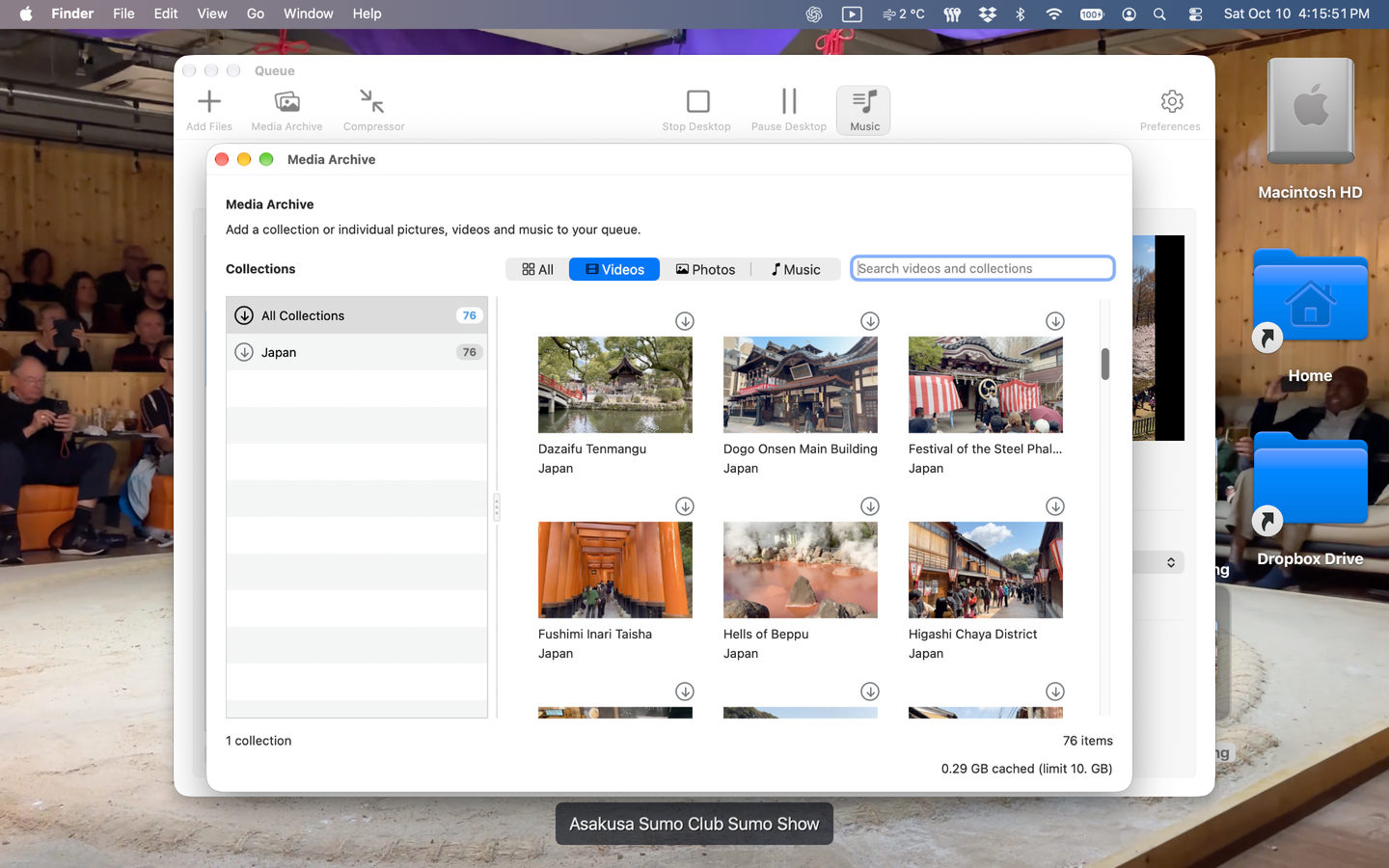
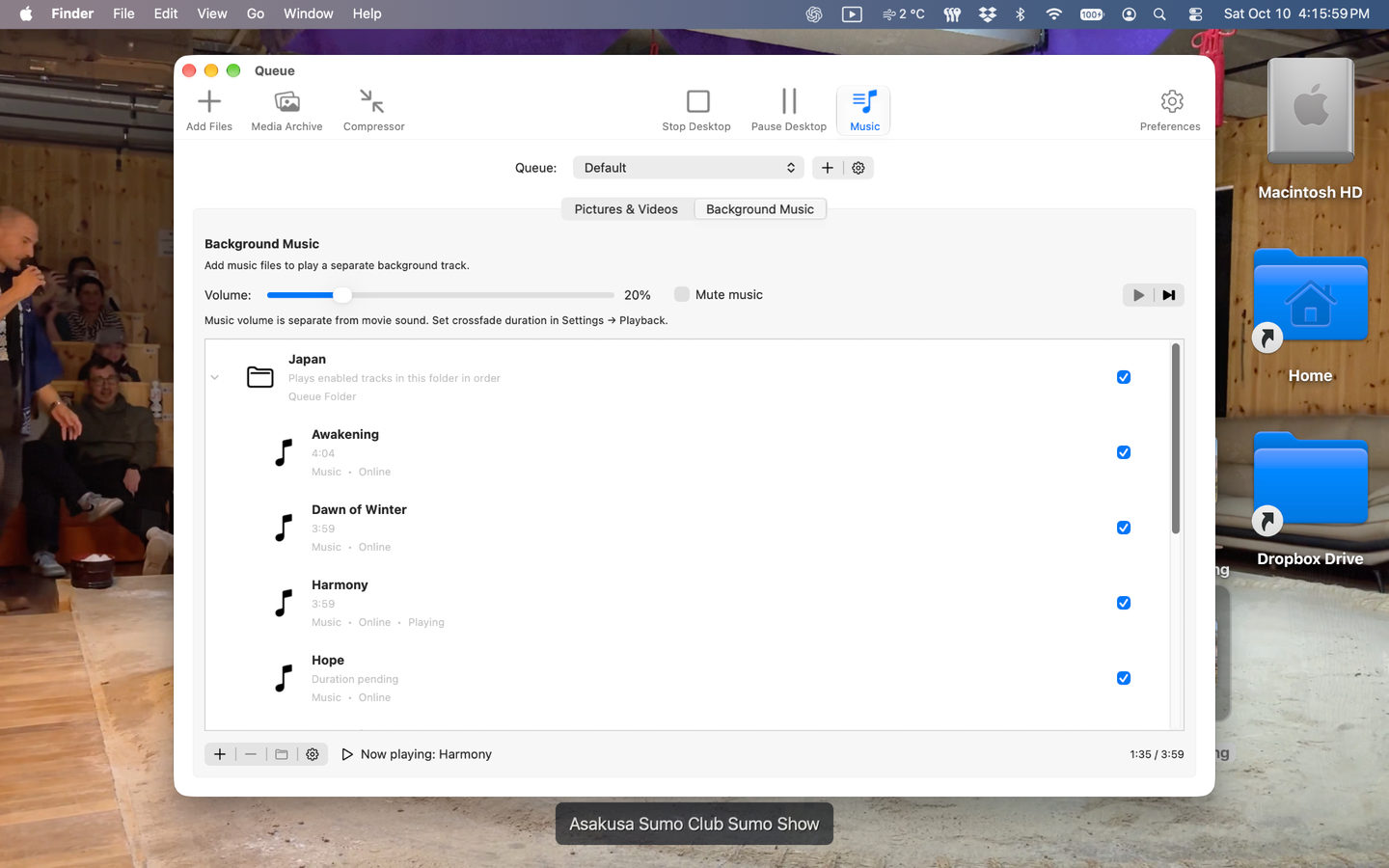
Play your own photos and videos behind desktop icons and windows.
Build queue sets, arrange folders and choose how each scene plays.
Add background music and blend scenes with adjustable transitions.
YOUR DESKTOP. YOUR SCENERY.
An ocean that never stops rolling. A city coming to life. That mountain view you wish you could keep a little longer. Motion Desktop turns your videos and photos into a living backdrop for your Mac.
Your scenes play behind your desktop icons and windows, with no movie controls getting in the way. Build a playlist from your own memories, explore Koingo's Media Archive, and add a soundtrack to make the space your own.
Choose a quiet backdrop for your workday, relive a favourite trip, or let the scenery surprise you.
Photos can gently pan and zoom. Videos can play once, repeat, or stay for a time you choose. Crossfades blend one scene into the next, keeping your desktop in motion.
Motion Desktop lives in your menu bar, so playback is always close by without taking up a place in your Dock.
Give your own videos a new home, from sweeping landscapes to small everyday moments.
Add gentle movement to photos with pan and zoom, or let a favourite image simply fill the screen.
Choose the crossfade length. Short clips get shorter transitions so the effect fits the scene.
Play a separate background music queue, with its own volume and transitions between tracks.
Drag in files or whole folders, arrange them into a playback queue, and save different sets for different moods. Keep a collection together in a folder, change the order, or turn on shuffle.
Thumbnails, previews, and playback details make it easy to see what is coming next. Give every scene its own timing, and enable or disable items without removing them.
Browse Koingo's Media Archive inside the app. Explore collections, preview the available media, and add individual scenes or a whole collection to your queue.
Choose a preferred download quality and keep favourite scenes available offline. A managed cache helps keep downloads from taking over your disk.
Your files and folders stay accessible. The moving background does not intercept clicks or show playback controls over your desktop.
Choose how media fits your display, add optional scene captions, and decide whether Motion Desktop starts playing when it opens.
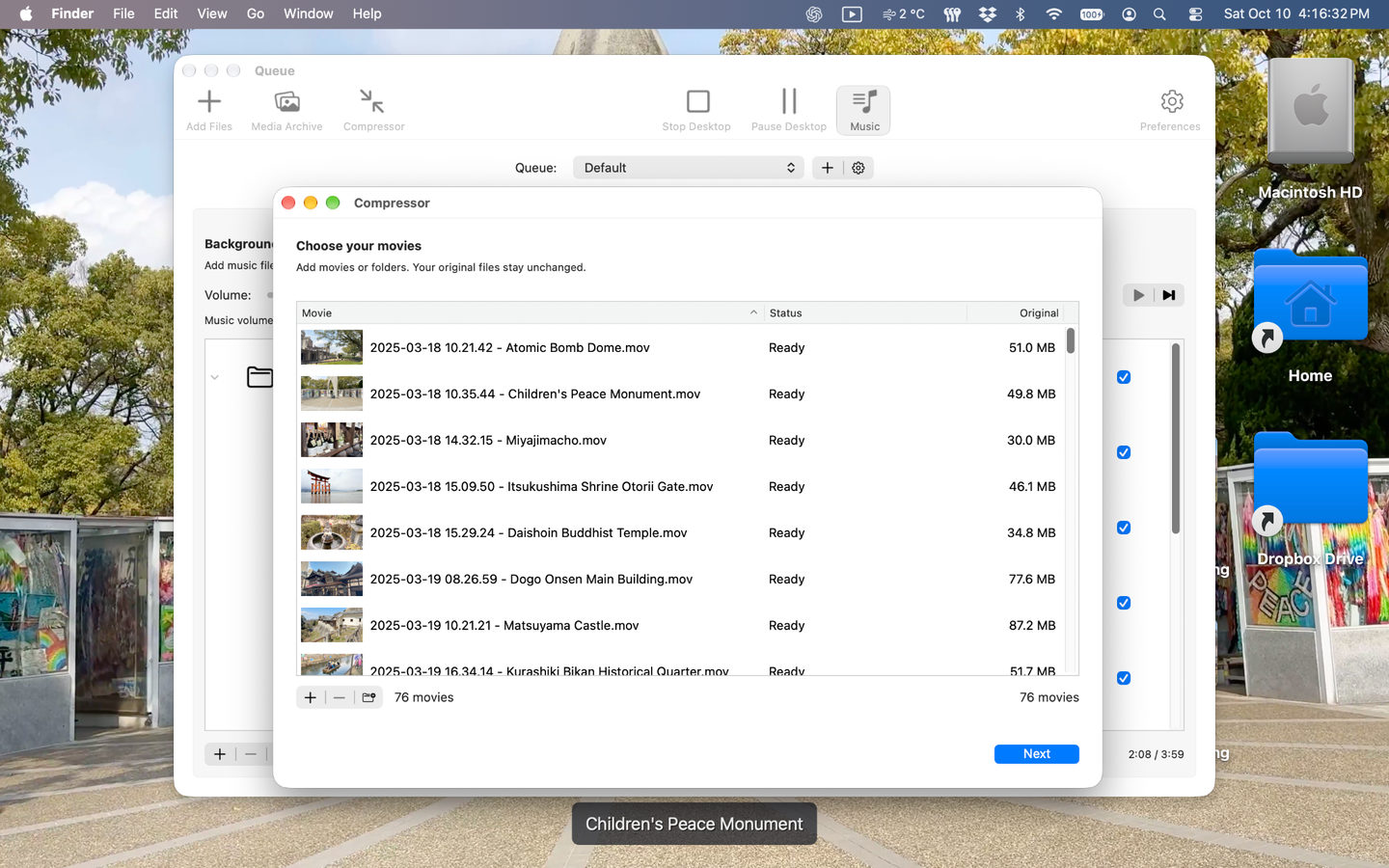
The built-in Compressor creates smaller video copies. Add your files, choose output settings, and compare the space saved when it finishes.
No wallpaper format to learn. Start with media you already have, or find something in the archive.
Yes. Add supported local videos and images to the Playback Queue, or drop in a folder to find the media inside it. Playback depends on the media formats supported by your Mac.
Yes. Motion Desktop displays its scenery behind your icons and windows. The background does not respond to clicks, so you can keep using your desktop normally. Stopping playback reveals your usual desktop picture.
Your local files play without an internet connection. The Media Archive needs a connection to discover and download new content. Previously downloaded media remains available while its cached copy is on your Mac; automatic cache cleanup can remove older downloads.
Movie audio is muted by default. You can change that in Preferences. Background Music has its own queue and volume, so you can enjoy a soundtrack without also hearing the sound recorded in your video clips.
Motion Desktop chooses from the versions available for that item. It can use an alternative when your preferred quality is missing, and checks for a better match when the archive is refreshed. Available quality varies by collection and source media.
Yes. Save separate queue sets with their own pictures, videos, background music, and folders. Switch sets from the queue window whenever you want a different atmosphere.
Yes. Preferences has separate options for opening Motion Desktop at login, showing the queue window on launch, and starting playback on launch. You can choose the combination that suits you.
Motion Desktop includes an option to pause animation on battery power. You can also use smaller video files, choose a lower archive quality, or pause desktop playback from the menu bar. Video playback and compression use more resources than a static desktop picture.
Use palindrome looping to play compatible movies forward and backward.
Build a separate music queue within each set, with independent volume and fades between tracks.
Optionally pause animation while your Mac runs on battery power.
Filter the archive to videos, photos, music, or all available media.
Crop to fill, fit with borders, or stretch media to suit your display.
Download individual items or a whole collection, with progress and cancellation controls.
Add files or folders and drag queue items into the order you want.
Keep items in a set while choosing which ones take part in playback.
Find supported media inside nested folders without having to add each file individually.
Choose login startup, whether the queue opens on launch, and whether playback starts automatically.
Preview selected media and inspect playback details while organizing your queue.
Play your videos and photos behind desktop icons and windows, without clickable movie controls.
Repeat a chosen number of times or loop for a chosen duration, with individual settings for each item.
Set a cache size and choose automatic cleanup when free disk space is low.
Browse Koingo collections and add individual scenes or entire collections to your queue.
Start, pause, or stop desktop playback and jump to the current scene in your queue.
Keep using your local files and available downloaded media when you are offline.
Group scenes into folders and rename those groups without changing the original media files.
Add movement to still photos with live pan and zoom.
Set how new media behaves, then override individual scenes whenever you want.
Choose how long still images stay on screen and set defaults for newly added media.
Mix supported movies and still images in the same playback queue.
Play a movie from start to finish, then move on to the next scene.
Choose your preferred quality and use an available alternative when that version is missing.
Save separate collections of pictures, videos, music, and folders for different moods.
Movie sound starts muted, leaving your separate background music under your control.
Show an optional caption on the desktop and choose its position.
Blend scenes together with adjustable transitions that shorten to suit short clips.
Follow your chosen order or let Motion Desktop choose the next scene at random.
Create smaller video copies with a guided workflow, progress display, and a summary of space saved.
1 computer/user · 5 unique devices per year
1 household · 10 unique devices per year
1 computer · 2 unique devices per year
1 school · 300 unique devices per year
10 computers/users · 60 unique devices per year
Unlimited computers/users · 10000 unique devices per year
Prices in USD.
Motion Desktop requires macOS 13 or later. An internet connection is needed to browse and download new Media Archive content.
| Version 1.5.5 – November 12, 2026 | |
| Requirements This version requires macOS 13 (Ventura) or later. | |
| Enhancement: | Smart Folders refresh when first loaded after launch, added, edited, or manually rescanned. Removed recurring folder scans, live monitoring, and automatic retries to reduce background CPU and disk activity. |
| Enhancement: | Apple Photos albums use the current library snapshot until Refresh is selected. Removed periodic and window-activation library reloads while preserving cloud access for requested playback and previews. |
| Bug Fix: | Settings prepares controls only for the selected pane and displays cached storage measurements without scanning download folders while the window opens. |
| Bug Fix: | Kept finished Smart Folder scans while menus or dialogs are open, and prevented cancelled or stale results from replacing a newer source. |