
Designed for Collectors
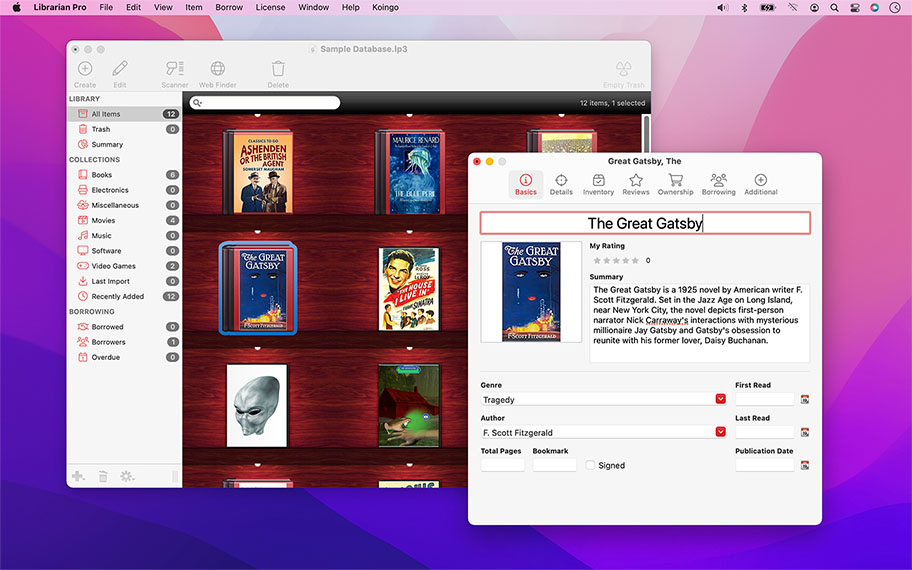
We all collect something, whether it's stamps, movies, games, music, books or wine. Librarian Pro brings sophistication and class to managing your collection! Browse all of your items at a glance on a virtual bookshelf, in a list, or in cover flow.
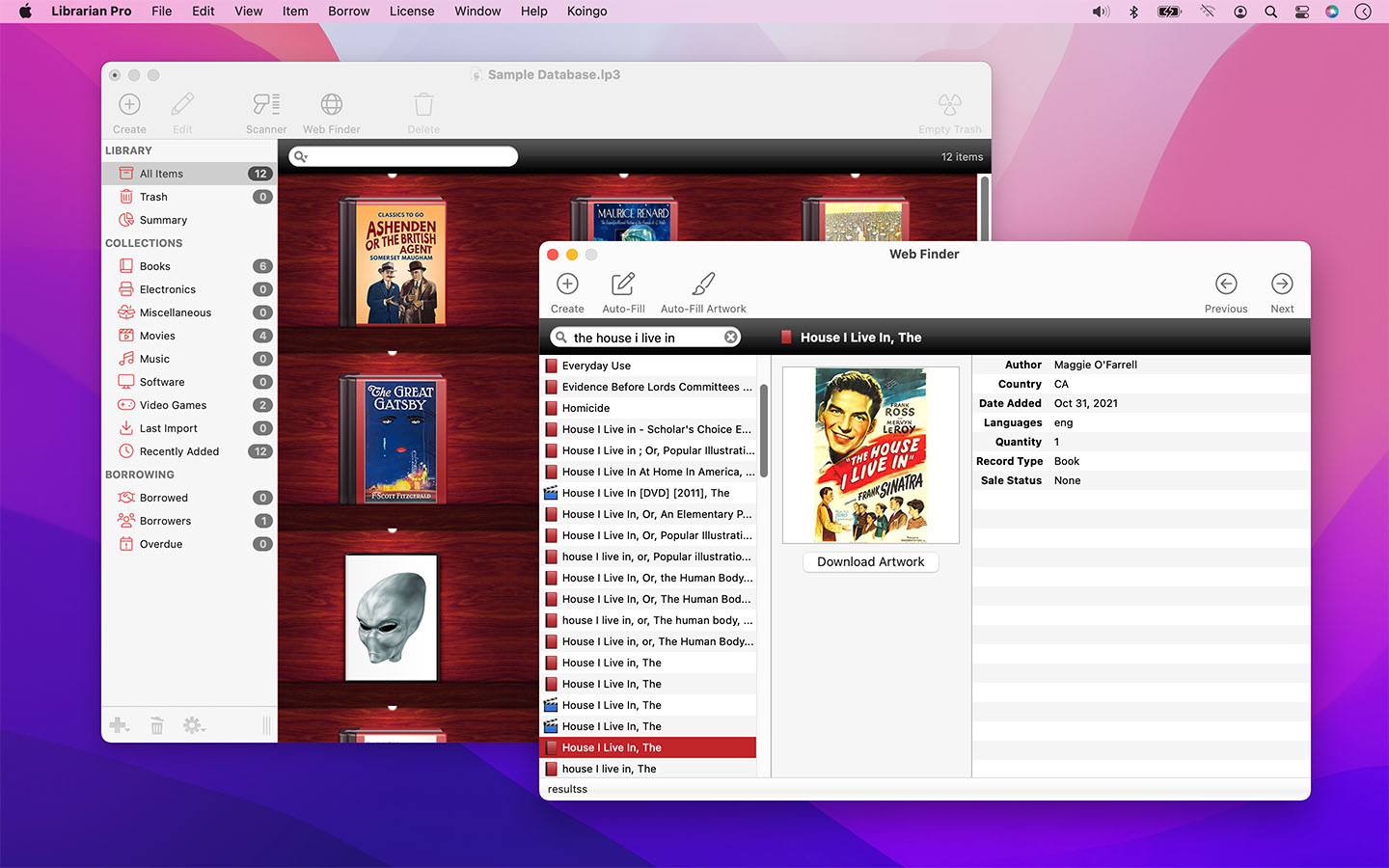
Item artwork and information is easily and automatically downloaded from the web. Even track which items you have lent out to friends; or, for small businesses, go as far as recording late fees and due dates.
Complete Inventory Control
If you are managing a full inventory of items for sale on eBay, or using Librarian Pro to track which friend borrowed which movies, the power-user features in Librarian Pro will make your life a breeze.
Taking full advantage of optical recognition technology, use your web cam or physical barcode scanner to add items to your library or manage inventory. Mark items as lent out to specific users, track in your computer's calendar, automatically send e-mails or display alerts. Even manage late fees and due dates.
Other Highlights
Detailed
Pre-defined item types that come with a variety of fields to enter all information you could ever possibly desire.
Collections
Create smart collections that automatically include items based on a set of criteria you specify. Want to quickly view all movies with Christian Bale? Done!
Import & Export
Easily import from our competitor's titles and other common file formats. Export for easy viewing as a web page or into our Data Guardian app!
Multi-Database Support
Create an unlimited number of databases: one for each collection you own!
Isolate Duplicates
Easily identify and delete duplicate library items.
Mac & PC Compatible
One database will work on both your Mac and PC.
Statistics
View a summary of all items in your library to compare prices and more.
Web Auto-Fill
Integrates with numerous web sites to automatically download item information.
Multi-Database Support
Create an unlimited number of separate databases.
Smart Collections
Automatically sort items by specific criteria.
Borrowers
Track item lending and charge late fees.
Export
Export to the web and a variety of other formats.
Import
Import from text, CSV, iTunes, 'pedias, Delicious Library and more!
Beautiful
View as a list, as a bookshelf, or in cover flow mode.
Duplicate Filter
Easily isolate and display duplicate items.
Details
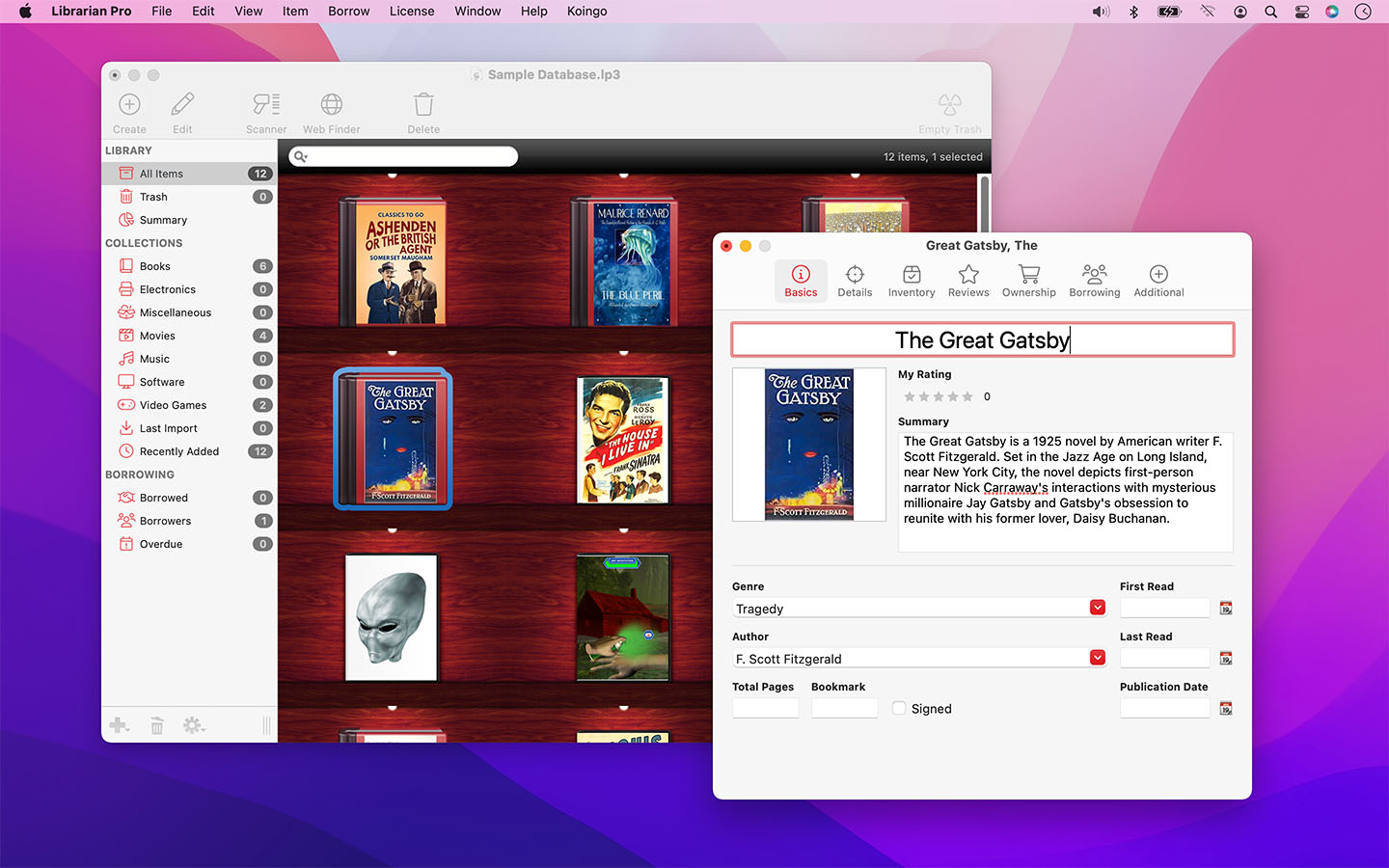
Fill in countless details about items ranging from tracks on an album to the illustrator for a book.
Sales Tracking
Record detailed purchase and sale information for items, such as purchase location, price, original value, used value, item URL, AND MORE.
Reviews
Write internal reviews.
Barcode Scanning
Use your web cam or physical barcode scanner to add items or update inventory.
Cross-Platform
One database works on both Mac and PC.
Calendar
Track lent out items in Mac OS X's Calendar.app and send reminder e-mails or display alerts.
Auto-Complete
Auto-complete helps speed data entry by remembering entires for other items.
For the full or trial version of our app, please use the download links below. After installation, the trial will automatically begin. For users owning a valid license, unlock the software via the "Unlock Product..." menu item if necessary.
Current Version
Older Versions
These versions are no longer supported and are listed primarily for customers owning older licenses.
| Name | Version | Size | Date | Platform | Minimum OS | Download |
|---|---|---|---|---|---|---|
| Librarian Pro | 3.2.2 | 35.43 MB | November 13, 2016 | PC | Windows XP | Download |
| Librarian Pro | 3.2.2 | 30.40 MB | November 13, 2016 | Mac | Mac OS 10.7 | Download |
| Final release that will work on Mac OS X 10.7. | ||||||
| Librarian Pro | 3.0.5 | 26.36 MB | January 24, 2014 | Mac | Mac OS 10.6 (Intel) | Download |
| Final release that will work on Mac OS X 10.6. | ||||||
| Librarian Pro | 2.2.6 | 17.86 MB | January 10, 2013 | Mac | Mac OS 10.6 (Intel) | Download |
| Librarian Pro | 2.2.5 | 22.89 MB | December 27, 2012 | PC | Windows 2000/XP | Download |
| Librarian Pro | 2.2.1 | 14.76 MB | September 7, 2012 | PC | Windows 2000/XP | Download |
| Librarian Pro | 2.2.1 | 19.58 MB | September 7, 2012 | Mac | Mac OS 10.4 (PPC/Intel) | Download |
First, let me tell you how invaluable Librarian Pro is to me! I have been a volunteer for an incredible organization called Bookshare for probably about seven years now. I was introduced to it way back in 2004 when my daughter, Cindy, who had cerebral palsy wanted to be able to read books independently. We had lots of books in our house, but no way for her to see a list. Later, the reading bug hit our younger daughter, Nichole, and by then my husband and I were full-fledged volunteers scanning an and proofreading books to make them digitally accessible for people with print disabilities. I have been even been known to take my service dog, Daisy, to the library to help me complete collections. Librarian Pro has been allowing us to catalog not only the thousands of books in our home, but our daughter's massive video collection. I highly recommend Librarian Pro all my friends who need to organize any of their media!
I recently had a house fire, and Librarian Pro helped me figure out what I had lost in the fire, what was on loan to friends, and what was stored in other locations.
Great program, use it already for many years to categorise my books. Would love to have a synchronisable app version for my iPhone or iPad.
Extremely user-friendly and compatible with third parties. Can seamlessly import all sorts of data from Address Book, Delicious Library, iTunes, and even Amazon! I honestly couldn't be more impressed.
I have my own library of primarily religious books, as I teach Bible. Librarian Pro has given me a way to record what books I own as well as to know what the replacement value would (roughly) be. I have discovered I have a few rare books!
Great product - especially the best way to keep track of PDF manuals and 'How To's'
Great Product, lots of features, helps me keep our music library organized! Some of the saving features are a little redundant (make sure you save each file and then the entire library, or you'll loose those entries), but I like how you can have different smart lists and definable categories. If you're familiar with csv files, this integrates wonderfully with any existing libraries you have in Excel, or a similar program!
Delicious Library really limits what you can do with it once you've actually put a collection into the database. Librarian Pro has no limits whatsoever. I think I've officially been converted… so long, Delicious. It's been fun.
No limits. I was sold on this one the first time I ever used it. You can make your databases as simple or as complicated as you like - the limits here are entirely up to you. Another bonus is that it's compatible with both Mac and Windows. I'm just waiting for an iOS version to take with me on the go and my life will be complete. Keep at it, Koingo. You guys are wonderful.
There's a comfort in knowing that all your possessions are categorized and logged neatly all in one place. My house got broken into a couple of years back and I only wish I'd had this app to look back on and figure out what was missing after the fact. So incredibly useful and easy to apply to your every day life. I swear I'll never live another day without it.
All of our products come with a full set of licensing options: from single users and households to small businesses and larger corporations.
Personal Licenses
Business Licenses
Our manual is always expanding! While we strongly believe our products as so intuitive you shouldn't need a manual, there are exceptions now and then. If you feel there is something missing from the documentation, please contact us.
For a single-page listing of all help entries, click here.
For speedy item entry, it is possible to type in a list of ISBN and UPC codes for items and have Librarian Pro automatically add them to your database and query the web for their details.
- Choose "Inventory Manager" from the "Borrow" menu.
- Setup the configuration for adding items by clicking the Options button.
- Hold up the item's barcode to the web cam or type the barcode in and hit enter.
Librarian Pro can manage basic user accounts for recording who has borrowed which items. To begin, you will need to have created at least one borrower.
- Click the plus (+) icon below the borrowers list or choose "New Borrower" from the File menu.
- Fill in the Borrower details.
- Close the window and click Save when prompted.
Assuming you have at least one item in your library, you can assign it to the borrower by one of the following methods:
- Select the item in the main library list and choose "Mark as Borrowed..." from the "Item" menu. You will then be prompted to select a borrower and a checked-out date.
- Double click the item in the main library list to view its details, click the "Additional" tab, and then click the "Mark as Borrowed..." button. You will then be prompted to select a borrower and a checked-out date.
- Drag and drop the item from the main library list onto the borrower's name in the sidebar.
All changes related to borrowing assignments are automatic and no saving is necessary. Additionally, if an item is removed from the library that borrowers have checked out, it will first be returned and then removed.
To mark an item as returned, follow the same steps as above. The buttons and menu items will now be labelled as "Mark as Returned".
It is also possible to check-out or return more than one item at a time. Simply select all the desired items in the main list and perform the same action as if you had only a single item selected.
Collections provide a way to organize items in your library aside from the standard groupings of type.
Creating a new collection
- Click the plus (+) icon below the collections list, or choose "New Collection" or "New Smart Collection" from the File menu to create a regular collection.
If you have created a regular collection, it will now appear in the collections sidebar of the main window. Type in a new name for the collection and hit enter. Then just drag and drop the items you wish to be part of that collection into it.
Smart Collections, however, are quite a bit different. Unlike traditional collections which require you to manually add your own items, Smart Collections automatically update, remove, and add items based on your criteria.
When you first choose the option of creating a new Smart Collection, you are presented with a window to specify rules for which items will be included. These rules can be changed afterward by highlighting the collection in the list, pressing the gear icon, and choosing "Edit Collection Rules".
We used to sell both the "Unitech AS10-U Barcode Scanner" and "Honeywell Voyager 1202g Scanner" through our web site. We still fully support both of these scanners with Librarian Pro. They can be ordered from BarcodesInc.com. As time goes on they may be discontinued; however, all barcode scanners will work as long as they support Keyboard Emulation. While many USB and wireless barcode scanners may not officially list this, they will likely have it.
Librarian Pro can export to both to HTML and your iPod. Creating new templates for both of these formats is relatively easy if you have experience with a text editor. Of course, creating a HTML template requires knowledge of HTML as well. Once installed, templates are stored in the Application Support (Mac OS) or Application Data (Windows) folders.
Creating an HTML Template
- Create a new folder on your desktop with the new name of your template.
- Create a basic design for the template and save it into this new folder as masterTemplate.html. Any and all required images for this design must go into a folder called "images".
- Rename masterTemplate.html to books.html and duplicate it five times. Rename all copies so they have the names: music.html, movies.html, pchardware.html, software.html, and videogames.html. Hereafter, these files will be referred to as "body files".
- Open all six body files and put a [item] and [/item] tag set around the area which will contain the template for the item details. Then, customize the item details area with any of the tags specified below. The content within the [item] [/item] area will be duplicated as many times as the item count per page (as specified by the user in the Export dialog). For instance, if the user is exporting 100 movies, and specifies 3 movies per page on export, the HTML that will be outputted will be in a single file containing: the top of the page, [item] content, [item] content, [item] content, and the end of the page. Additional copies of this page will be created until their entire count has been exported. In this case, 34 pages for movies will be created.
- In each body page, on the first lines following [item], include a [settings] and [/settings] tag set. Theoretically, this can be placed anywhere between the [item] and [/item] tags, but for simplicity it is best to put it right after [item]. It will be removed from the final product, but will prevent the template from being loaded if it does not exist.
Example:
[settings]
[coverHeight]100[/coverHeight]
[coverWidth]100[/coverWidth]
[fillColor]#RRGGBB[/fillColor]
[bigCoverHeight]400[/bigCoverHeight]
[bigCoverWidth]400[/bigCoverWidth]
[bigFillColor]#RRGGBB[/bigFillColor]
[/settings]
The top two tags are for you to specify the maximum width and height of cover art if you used a [LPItem:ProductImage] tag in the body file. If a [fillColor] (optional) is specified, the cover art will be exported and if it cannot be scaled down proportionally to fit exactly to the bounds specified, filler color will be used around the edges. Otherwise, an image of "best fit" is exported. The width and height of this image may be smaller than the [coverHeight] and [coverWidth] specified, but never larger. The "big" versions refer to [LPItem:ProductImageBig]. - Lastly, you must create an index.html page which will link to each item page. See the list of tags below for ones valid on the Index page. There must also be a [settings] tag set on the index.html page, but for other settings.
[settings]
[starBackgroundColor]#RRGGBB[/starBackgroundColor]
[/settings]
Leave [starBackgroundColor] blank to use PNGs with 8-bit masks. This is the new and modern format. This is NOT supported in Internet Explorer 6 and lower. - Optionally, you can create a preview.html file to enable the template preview option in the Export window. Store images for this template in a different folder than "images". This way they will not be copied over to the final product. Also, a style.css will be copied over as well if one exists.
- The following files should now be created:
- index.html — the main index page for the export which contains links to the body pages (item lists).
- books.html, generalitems.html, music.html, movies.html, pchardware.html, software.html, videogames.html — contains template for each item type.
- Launch Librarian Pro and open the Export window.
- Click the HTML tab, and press the "Install New..." button.
- Choose the folder you just created for your template. It will then be added to the templates popup menu if it was created successfully.
- Perform an export as desired using your new template.
Export Variables
The following is a list of variables which may be used in both HTML and iPod export templates. Validity defines where the tag can be used. Header and Footer define the area of the body page above the [item] tag and below the [/item] tag respectively. Body refers to any content between the [item] and [/item] tag set. Index refers to the index.html page only.
To use custom values from General Items or from the Additional Values area, use this format: [LPItem:FieldName]. For instance, if the field name was 'Wine Year', the variable would be presented as follows: [LPItem:Wine Year].
| Tag | Validity | Description |
|---|---|---|
| [LPMain:DatabaseTitle] | iPod, Header, Footer, Index | Title of your database |
| [LPMain:ItemCount] | iPod, Header, Footer, Index | Total items exported. If on a header or footer page, total items exported of the type. |
| [LPMain:HomeURL] | Header, Footer, Index | URL to the index page |
| [LPMain:BookURL] | Header, Footer, Index | URL to the first book page |
| [IfBookPage] [ELSE] [/IfBookPage] |
Header, Footer, Index | Wrap around the entire block of HTML that should appear on the index page if there is a Book page. |
| [LPMain:GeneralItemURL] | Header, Footer, Index | URL to the first general item page |
| [IfGeneralItemPage] [ELSE] [/IfGeneralItemPage] |
Header, Footer, Index | Wrap around the entire block of HTML that should appear on the index page if there is a General Items page. |
| [LPMain:MusicURL] | Header, Footer, Index | URL to the first music page |
| [IfMusicPage] [ELSE] [/IfMusicPage] |
Header, Footer, Index | Wrap around the entire block of HTML that should appear on the index page if there is a Music page. |
| [LPMain:MovieURL] | Header, Footer, Index | URL to the first movie page |
| [IfMoviePage] [ELSE] [/IfMoviePage] |
Header, Footer, Index | Wrap around the entire block of HTML that should appear on the index page if there is a Movie page. |
| [LPMain:PCHardwareURL] | Header, Footer, Index | URL to the first hardware page |
| [IfPCHardwarePage] [ELSE] [/IfPCHardwarePage] |
Header, Footer, Index | Wrap around the entire block of HTML that should appear on the index page if there is a PC Hardware page. |
| [LPMain:SoftwareURL] | Header, Footer, Index | URL to the first software page |
| [IfSoftwarePage] [ELSE] [/IfSoftwarePage] |
Header, Footer, Index | Wrap around the entire block of HTML that should appear on the index page if there is a Software page. |
| [LPMain:VideoGameURL] | Header, Footer, Index | URL to the first video game page |
| [IfVideoGamePage] [ELSE] [/IfVideoGamePage] |
Header, Footer, Index | Wrap around the entire block of HTML that should appear on the page if there is a Video Game index page. |
| [LPMain:TotalPages] | Header, Footer | Total Pages for this type |
| [LPMain:CurrentPage] | Header, Footer | Current page number |
| [LPMain:NextPageURL] | Header, Footer | URL to the next page |
| [IfNextPage] [ELSE] [/IfNextPage] |
Header, Footer | Wrap around the entire block of HTML that should appear on the page if there is a next page. |
| [LPMain:PrevPageURL] | Header, Footer | URL to the previous page |
| [IfPrevPage] [ELSE] [/IfPrevPage] |
Header, Footer | Wrap around the entire block of HTML that should appear on the page if there is a previous page. |
| [LPMain:PageType] | Header, Footer | Books, General Items, Movies, Music, PC Hardware, Software, Video Games |
| [LPItem:ProductImage] | Body | Cover art for the item |
| [LPItem:ProductImageBig] | Body | Larger version of the covert art for the item |
| [LPItem:AdditionalNotes] | iPod, Body | The notes field (found under the Additional tab) |
| [LPItem:ASIN] | iPod, Body | ASIN |
| [LPItem:Awards] | iPod, Body | Awards |
| [LPItem:BorrowedDate] | iPod, Body | Date the item was borrowed, if at all. |
| [LPItem:BorrowerUID] | iPod, Body | The name of the borrower |
| [LPItem:Collection] | iPod, Body | Collection ID (not the collection it exists within in Librarian Pro) |
| [LPItem:Condition] | iPod, Body | Condition |
| [LPItem:Country] | iPod, Body | Country |
| [LPItem:Credits] | iPod, Body | Credits (names and roles) |
| [LPItem:EAN] | iPod, Body | EAN |
| [LPItem:Genre] | iPod, Body | Genre |
| [LPItem:ISBN] | iPod, Body | ISBN |
| [LPItem:Languages] | iPod, Body | Languages |
| [LPItem:ListPrice] | iPod, Body | List Price |
| [LPItem:Location] | iPod, Body | Location |
| [LPItem:MediaFormat] | iPod, Body | The type of media the item comes in |
| [LPItem:MPN] | iPod, Body | MPN |
| [LPItem:NewValue] | iPod, Body | Current value of the item retail |
| [LPItem:NumberInSeries] | iPod, Body | Number of the item in the series |
| [LPItem:PriceCurrency] | iPod, Body | Currency of the List Price |
| [LPItem:PurchasedDate] | iPod, Body | When the item was purchased |
| [LPItem:PurchasedFrom] | iPod, Body | Where the item was purchased |
| [LPItem:PurchasePrice] | iPod, Body | The amount the item was purchased for |
| [LPItem:Quantity] | iPod, Body | Quantity |
| [LPItem:RatingAmazon] | iPod, Body | Amazon rating (out of 5) |
| [LPItem:RatingPersonal] | iPod, Body | Personal rating (out of 5) |
| [LPItem:RecordType] | iPod, Body | Book, General Item, Music, Movie, PC Hardware, etc. |
| [LPItem:Rental] | iPod, Body | Rental |
| [LPItem:SaleStatus] | iPod, Body | Sale Status |
| [LPItem:SalePrice] | iPod, Body | Sale Price |
| [LPItem:SaleLocation] | iPod, Body | Sale Location |
| [LPItem:SaleTransactionID] | iPod, Body | Transaction ID |
| [LPItem:SaleBuyerName] | iPod, Body | Buyer Name |
| [LPItem:SaleBuyerPhone] | iPod, Body | Buyer Phone |
| [LPItem:SaleDate] | iPod, Body | Sale Date |
| [LPItem:SaleBuyerEMail] | iPod, Body | Buyer E-Mail |
| [LPItem:SaleBuyerAddress] | iPod, Body | Buyer Address |
| [LPItem:SaleURL] | iPod, Body | Sale URL |
| [LPItem:Series] | iPod, Body | Series |
| [LPItem:SerialNumber] | iPod, Body | Serial Number |
| [LPItem:SKU] | iPod, Body | SKU |
| [LPItem:Summary] | iPod, Body | Summary |
| [LPItem:Title] | iPod, Body | Title |
| [LPItem:UniqueID] | iPod, Body | Unique ID number for this item |
| [LPItem:UPC] | iPod, Body | UPC |
| [LPItem:UsedValue] | iPod, Body | Current value of the item used |
| [LPItem:z_BookAuthor] | iPod, Body | Author |
| [LPItem:z_BookCopyright] | iPod, Body | Copyright |
| [LPItem:z_BookCurrentPage] | iPod, Body | Current Page |
| [LPItem:z_BookDeweyDecimal] | iPod, Body | Dewey Decimal |
| [LPItem:z_BookEdition] | iPod, Body | Edition |
| [LPItem:z_BookEditor] | iPod, Body | Editor |
| [LPItem:z_BookFirstRead] | iPod, Body | Date when the book was first read |
| [LPItem:z_BookIllustrator] | iPod, Body | Illustrator |
| [LPItem:z_BookLCCN] | iPod, Body | Library of Congress Control Number |
| [LPItem:z_BookPages] | iPod, Body | Page Count |
| [LPItem:z_BookPlacePublished] | iPod, Body | Place Published |
| [LPItem:z_BookPublisher] | iPod, Body | Publisher |
| [LPItem:z_BookReadingLevel] | iPod, Body | Reading Level |
| [LPItem:z_BookReleasePublication] | iPod, Body | Original Release Date |
| [LPItem:z_BookSigned] | iPod, Body | Yes/No (is the book signed or not) |
| [LPItem:z_BookTranslator] | iPod, Body | Translator |
| [LPItem:z_GeneralItemsReleased] | iPod, Body | Release Date |
| [LPItem:z_HardwareBrand] | iPod, Body | Brand |
| [LPItem:z_HardwareDimHeight] | iPod, Body | Hardware Height |
| [LPItem:z_HardwareDimLength] | iPod, Body | Hardware Length |
| [LPItem:z_HardwareDimWeight] | iPod, Body | Hardware Weight |
| [LPItem:z_HardwareDimWidth] | iPod, Body | Hardware Width |
| [LPItem:z_HardwareFeatures] | iPod, Body | Features |
| [LPItem:z_HardwareMainColor] | iPod, Body | Main Color |
| [LPItem:z_HardwareManufacturer] | iPod, Body | Manufacturer |
| [LPItem:z_HardwarePlatform] | iPod, Body | Platform |
| [LPItem:z_HardwareReleased] | iPod, Body | Release Date |
| [LPItem:z_HardwareWarranty] | iPod, Body | Warranty |
| [LPItem:z_MovieAspectRatio] | iPod, Body | Aspect Ratio |
| [LPItem:z_MovieAudioFormat] | iPod, Body | Audio Format |
| [LPItem:z_MovieCinematographer] | iPod, Body | Cinematographer |
| [LPItem:z_MovieComposer] | iPod, Body | Composer |
| [LPItem:z_MovieContentRating] | iPod, Body | Content Rating |
| [LPItem:z_MovieDirector] | iPod, Body | Director |
| [LPItem:z_MovieDiscCount] | iPod, Body | Disc Count |
| [LPItem:z_MovieDuration] | iPod, Body | Duration |
| [LPItem:z_MovieFeatures] | iPod, Body | Features |
| [LPItem:z_MoviePictureFormat] | iPod, Body | Picture Format |
| [LPItem:z_MovieRegionCode] | iPod, Body | Region Code |
| [LPItem:z_MovieReleaseHome] | iPod, Body | Released to Home Media Date |
| [LPItem:z_MovieReleaseTheatre] | iPod, Body | Theatrical Release |
| [LPItem:z_MovieStars] | iPod, Body | Stars |
| [LPItem:z_MovieStudio] | iPod, Body | Studio |
| [LPItem:z_MovieSubtitleLanguages] | iPod, Body | Subtitle Languages |
| [LPItem:z_MovieVideoFormat] | iPod, Body | NTSC or PAL |
| [LPItem:z_MusicArtist] | iPod, Body | Artist |
| [LPItem:z_MusicAudioFormat] | iPod, Body | Audio Format |
| [LPItem:z_MusicComposer] | iPod, Body | Composer |
| [LPItem:z_MusicConductor] | iPod, Body | Conductor |
| [LPItem:z_MusicDiscCount] | iPod, Body | Disc Count |
| [LPItem:z_MusicDuration] | iPod, Body | Duration |
| [LPItem:z_MusicLabel] | iPod, Body | Music Label |
| [LPItem:z_MusicMixer] | iPod, Body | Mixer |
| [LPItem:z_MusicProducer] | iPod, Body | Producer |
| [LPItem:z_MusicReleaseAgain] | iPod, Body | Rerelease Date |
| [LPItem:z_MusicReleaseOriginal] | iPod, Body | Original Release Date |
| [LPItem:z_MusicSpecialRemarks] | iPod, Body | Special Remarks |
| [LPItem:z_MusicTracks] | iPod, Body | Artist - Title (Duration, Disc: #, Track: #) |
| [LPItem:z_SoftwareASR] | iPod, Body | Additional System Requirements |
| [LPItem:z_SoftwareDeveloper] | iPod, Body | Developer |
| [LPItem:z_SoftwareDeveloperEMail] | iPod, Body | Developer E-Mail |
| [LPItem:z_SoftwareDeveloperURL] | iPod, Body | Developer URL |
| [LPItem:z_SoftwareFeatures] | iPod, Body | Features |
| [LPItem:z_SoftwareLicenseKey] | iPod, Body | License Key |
| [LPItem:z_SoftwareLicenseType] | iPod, Body | License Type |
| [LPItem:z_SoftwarePlatform] | iPod, Body | Platform |
| [LPItem:z_SoftwarePublisher] | iPod, Body | Publisher |
| [LPItem:z_SoftwareReleased] | iPod, Body | Release Date |
| [LPItem:z_VideoGameAchievements] | iPod, Body | Achievements |
| [LPItem:z_VideoGameASR] | iPod, Body | Additional System Requirements |
| [LPItem:z_VideoGameBestTime] | iPod, Body | Best Time |
| [LPItem:z_VideoGameCheats] | iPod, Body | Cheats, Codes, Walkthroughs |
| [LPItem:z_VideoGameCompleted] | iPod, Body | Completed (Yes/No) |
| [LPItem:z_VideoGameDeveloper] | iPod, Body | Developer |
| [LPItem:z_VideoGameDeveloperEMail] | iPod, Body | Developer E-Mail |
| [LPItem:z_VideoGameDeveloperURL] | iPod, Body | Developer URL |
| [LPItem:z_VideoGameDifficulty] | iPod, Body | Difficulty |
| [LPItem:z_VideoGameESRB] | iPod, Body | ESRB Rating |
| [LPItem:z_VideoGameFeatures] | iPod, Body | Features |
| [LPItem:z_VideoGameHighScore] | iPod, Body | High Score |
| [LPItem:z_VideoGameLicenseKey] | iPod, Body | License Key |
| [LPItem:z_VideoGameLicenseType] | iPod, Body | License Type |
| [LPItem:z_VideoGameMultiplayerMode] | iPod, Body | Multiplayer Details/Mode |
| [LPItem:z_VideoGameNowPlaying] | iPod, Body | Now Playing (Yes/No) |
| [LPItem:z_VideoGameNumberPlayers] | iPod, Body | Number of Players |
| [LPItem:z_VideoGamePlatform] | iPod, Body | Platform |
| [LPItem:z_VideoGamePublisher] | iPod, Body | Publisher |
| [LPItem:z_VideoGameReleased] | iPod, Body | Release Date |
| [LPItem:z_VideoGameSpecialEdition] | iPod, Body | Special Edition (Yes/No) |
Item Types
- Coin-collecting (Numismatics)
- Wine
User Interface
- FrontRow plugin.
Functionality
- Bulk-edit additional values
- Link to external files and show file path
- Ability edit all borrowed item details (ie. change return date)
- Borrow an item without a return date.
- Clear borrow history or clear individual entries.
- Having a view "who has actually borrowed item X" (like the borrow history, but only actual data). The actual view in one row doesn' reveal all borrowers, if you exceed 4 or 5 borrowers
- More/customizable fields in Borrower accounts.
- Ability to import and update eBooks, Movies, Music from iTunes.
- Organize volumes in "1,2,3..." fashion (English sorting).
- Multi-field sorting options (first by author, then by series, then by series number.).
- Spotlight-searchable databases.
- Ability to generate a MARC record upon input of an ISBN.
- Send as E-Mail to include item image (AppleScript in Mail.app does not support this yet)
- Sell on Amazon/eBay, etc. and auto-populate details
- "I would really like to search for books using nonconsecutive terms. In other words, if I want to search for a book called "American History" by John Smith, I'd like to be able to type in "history smith" and see all results that match that query. As it stands now, I can only find results by typing in consecutive terms, like "American history" (but this of course brings up every single book with that (very common) term somewhere in the description."
- Ability to set partial dates (ie. October 2011) or date ranges (ie. 1997-2009)
Web Item Search
- User-createable plugins to search their own sites. Returns results in a format native to Librarian Pro.
- Amazon.cn
- Library of Congress
- IMDB
- BOL
- CDDB
- Royal library
- BibText
- CasadelLibro
Import/Export
- EndNote
- DL/Bruji borrower import
- Export to XML.
- HTML export to allow breaking item lists up by collection
- Software import to support app version numbers on Windows
- Drag and drop apps into Librarian Pro to create miscellaneous item type with file details
- Ignore "header row" when importing
Other
- iPhone version.
- Option to allow letters in barcodes/SKUs/ISBNs, etc.
Librarian Pro can import from Delicious Library, Bookpedia, CDpedia, DVDpedia, Gamepedia, iTunes and more!
- With a database window open, choose "Import..." from the "Item" menu.
- Click the type of database or information you would like to import from the toolbar at the left side of the window.
- Specify any additional options as desired and click "Import".
Additionally, a Text import option is also available. This allows for easy importing from CSV, tab-delimited, or custom flat-text file formats.
- Click the Text icon on the navigation pane.
- Specify both the record and field delimiters for the file you wish to open.
- Click the "Open..." button and choose the file to import.
- If the field and record delimiters were correctly specified, the first record should now be shown in the list.
- Specify where each field should go by clicking on each row in the "Map To" column. This only needs to be done for the first record — it will carry over for all additional records.
- Click "Import".
Librarian Pro is intended as a home inventory solution. While it offers many powerful features, it is not a replacement for a full library management system for a school or business.
When the program first launches, a clean database will be automatically created and displayed. Begin adding items by making a selection from the "New..." menu item under the Item menu. Enter the item details as desired, and close the window to be prompted if the changes should be kept and applied to your database.
Items can be dragged and dropped between databases, onto borrowers, and onto regular collections. To add a new collection, click the plus (+) icon at the bottom of the collections list. Specify a name, and hit the enter key to enact the change.
Please see the additional sections in this manual for help on reloading details from the web, importing, exporting, and other useful features.
== Issues Yet to Verify ==
• Every time closing database it asks to save it, regardless if there were changes (Windows only)
• Defaults to Gallery View regardless of previous setting (Windows only)
• Maximize/minimize options greyed out (Windows only)
• Barcode scanner not working (Windows)
• Publication date not included with Books when using auto-fill
• Categories may reappear on relaunch after hiding them.
Loading item details from the web is one of Librarian Pro's highlights.
- Create a new item via the Item menu.
- Type in the title of the item.
- Choose "Search Web for Item" from the "Item" menu.
- The web will be queried for possible results and they will then be displayed in the new window which appeared.
- Use the back/forward buttons to find the correct item.
- Click Auto-fill on the toolbar.
The database format for Librarian Pro is interchangeable between both the Mac and Windows versions without any need for updating or converting. Additionally, the feature set in both applications is identical and licenses are valid for both versions.
After purchasing your Bluetooth-enabled wireless barcode scanner, follow the steps below to ensure successful integration with Librarian Pro:
Initial Configuration on Mac OS X 10.7 or later
- Plug in and charge your wireless barcode scanner.
- Ensure you have paired the wireless scanner with the cradle by scanning the barcode on the cradle. If successful, after 10 seconds, the blue LED on the cradle will stop blinking and stay illuminated.
- Print and scan the code on Page 17 of the manual under "When the MS9535 Acts as a Server to Other Bluetooth Devices." This will setup scanner in the correct mode so that it can be connected to your computer.
- In the Finder choose "Computer" from the "Go" menu
- Open your hard drive, "System", "Library", "CoreServices" and then "Bluetooth Setup Assistant.app"
- Wait for the VoyagerBT device to appear (not the MS9535 cradle), and click the "Continue" button.
- Pairing will fail. Click the "Passcode Options..." button and choose "Do not use a passcode with this device." Click OK
- Click Continue and pairing will be successful.
Initial Configuration on Mac OS X 10.6
- Plug in the cradle to a power source and let your barcode scanner fully charge. Only continue to step 3 once the scanner is fully charged.
- (optional) Configure the barcode scanner using the manual if necessary. Metrologic MS9535 barcode scanners should work right out of the box.
- Plug the USB Bluetooth wedge into your computer, if required. A bluetooth wedge may not be required if your computer already has Bluetooth built-in.
- Open "System Preferences" from the Apple menu and click the "Bluetooth" icon.
- Click the add button (+) at the bottom of the device list.
- A setup assistant will be launched and will greet you. Click Continue.
- On the "Select Device Type" screen select the choice: "Any Device" and click Continue.
- Choose your wireless barcode scanner (ie. VoyagerBT) from the device list and press Continue. If given a choice between the cradle for your scanner and the scanner itself, choose the scanner.
- The assistant will gather information about the device. When finished, click Continue.
- Enter a passkey of "0000" (without quotes), and press Continue. The device will be configured. When complete, press the Quit button. If the passkey of 000 does not work, go back to the previous screen where you selected the device, and press "Passkey Options" and select the option to not use a passkey.
- The device now appears in the Bluetooth device list, select it and press the "Advanced..." button.
- Ensure the Serial Port Type is set to "RS-232" and not "Modem", and then click OK.
After Setup is Complete
- Open "Librarian Pro" and click the "Hardware" tab in the "Inventory" window.
- Select the VoyagerBT device and click "Connect"
- Begin scanning! Don't forget to disconnect the scanner when finished.
For speedy item entry, it is possible to type in a list of ISBN and UPC codes for items and have Librarian Pro automatically add them to your database and query the web for their details.
- Choose "Inventory Manager" from the "Borrow" menu.
- Setup the configuration for adding items by clicking the Options button.
- Hold up the item's barcode to the web cam or type the barcode in and hit enter.
Librarian Pro can manage basic user accounts for recording who has borrowed which items. To begin, you will need to have created at least one borrower.
- Click the plus (+) icon below the borrowers list or choose "New Borrower" from the File menu.
- Fill in the Borrower details.
- Close the window and click Save when prompted.
Assuming you have at least one item in your library, you can assign it to the borrower by one of the following methods:
- Select the item in the main library list and choose "Mark as Borrowed..." from the "Item" menu. You will then be prompted to select a borrower and a checked-out date.
- Double click the item in the main library list to view its details, click the "Additional" tab, and then click the "Mark as Borrowed..." button. You will then be prompted to select a borrower and a checked-out date.
- Drag and drop the item from the main library list onto the borrower's name in the sidebar.
All changes related to borrowing assignments are automatic and no saving is necessary. Additionally, if an item is removed from the library that borrowers have checked out, it will first be returned and then removed.
To mark an item as returned, follow the same steps as above. The buttons and menu items will now be labelled as "Mark as Returned".
It is also possible to check-out or return more than one item at a time. Simply select all the desired items in the main list and perform the same action as if you had only a single item selected.
Collections provide a way to organize items in your library aside from the standard groupings of type.
Creating a new collection
- Click the plus (+) icon below the collections list, or choose "New Collection" or "New Smart Collection" from the File menu to create a regular collection.
If you have created a regular collection, it will now appear in the collections sidebar of the main window. Type in a new name for the collection and hit enter. Then just drag and drop the items you wish to be part of that collection into it.
Smart Collections, however, are quite a bit different. Unlike traditional collections which require you to manually add your own items, Smart Collections automatically update, remove, and add items based on your criteria.
When you first choose the option of creating a new Smart Collection, you are presented with a window to specify rules for which items will be included. These rules can be changed afterward by highlighting the collection in the list, pressing the gear icon, and choosing "Edit Collection Rules".
We used to sell both the "Unitech AS10-U Barcode Scanner" and "Honeywell Voyager 1202g Scanner" through our web site. We still fully support both of these scanners with Librarian Pro. They can be ordered from BarcodesInc.com. As time goes on they may be discontinued; however, all barcode scanners will work as long as they support Keyboard Emulation. While many USB and wireless barcode scanners may not officially list this, they will likely have it.
Item Types
- Coin-collecting (Numismatics)
- Wine
User Interface
- FrontRow plugin.
Functionality
- Bulk-edit additional values
- Link to external files and show file path
- Ability edit all borrowed item details (ie. change return date)
- Borrow an item without a return date.
- Clear borrow history or clear individual entries.
- Having a view "who has actually borrowed item X" (like the borrow history, but only actual data). The actual view in one row doesn' reveal all borrowers, if you exceed 4 or 5 borrowers
- More/customizable fields in Borrower accounts.
- Ability to import and update eBooks, Movies, Music from iTunes.
- Organize volumes in "1,2,3..." fashion (English sorting).
- Multi-field sorting options (first by author, then by series, then by series number.).
- Spotlight-searchable databases.
- Ability to generate a MARC record upon input of an ISBN.
- Send as E-Mail to include item image (AppleScript in Mail.app does not support this yet)
- Sell on Amazon/eBay, etc. and auto-populate details
- "I would really like to search for books using nonconsecutive terms. In other words, if I want to search for a book called "American History" by John Smith, I'd like to be able to type in "history smith" and see all results that match that query. As it stands now, I can only find results by typing in consecutive terms, like "American history" (but this of course brings up every single book with that (very common) term somewhere in the description."
- Ability to set partial dates (ie. October 2011) or date ranges (ie. 1997-2009)
Web Item Search
- User-createable plugins to search their own sites. Returns results in a format native to Librarian Pro.
- Amazon.cn
- Library of Congress
- IMDB
- BOL
- CDDB
- Royal library
- BibText
- CasadelLibro
Import/Export
- EndNote
- DL/Bruji borrower import
- Export to XML.
- HTML export to allow breaking item lists up by collection
- Software import to support app version numbers on Windows
- Drag and drop apps into Librarian Pro to create miscellaneous item type with file details
- Ignore "header row" when importing
Other
- iPhone version.
- Option to allow letters in barcodes/SKUs/ISBNs, etc.
Librarian Pro is intended as a home inventory solution. While it offers many powerful features, it is not a replacement for a full library management system for a school or business.
When the program first launches, a clean database will be automatically created and displayed. Begin adding items by making a selection from the "New..." menu item under the Item menu. Enter the item details as desired, and close the window to be prompted if the changes should be kept and applied to your database.
Items can be dragged and dropped between databases, onto borrowers, and onto regular collections. To add a new collection, click the plus (+) icon at the bottom of the collections list. Specify a name, and hit the enter key to enact the change.
Please see the additional sections in this manual for help on reloading details from the web, importing, exporting, and other useful features.
Loading item details from the web is one of Librarian Pro's highlights.
- Create a new item via the Item menu.
- Type in the title of the item.
- Choose "Search Web for Item" from the "Item" menu.
- The web will be queried for possible results and they will then be displayed in the new window which appeared.
- Use the back/forward buttons to find the correct item.
- Click Auto-fill on the toolbar.
After purchasing your Bluetooth-enabled wireless barcode scanner, follow the steps below to ensure successful integration with Librarian Pro:
Initial Configuration on Mac OS X 10.7 or later
- Plug in and charge your wireless barcode scanner.
- Ensure you have paired the wireless scanner with the cradle by scanning the barcode on the cradle. If successful, after 10 seconds, the blue LED on the cradle will stop blinking and stay illuminated.
- Print and scan the code on Page 17 of the manual under "When the MS9535 Acts as a Server to Other Bluetooth Devices." This will setup scanner in the correct mode so that it can be connected to your computer.
- In the Finder choose "Computer" from the "Go" menu
- Open your hard drive, "System", "Library", "CoreServices" and then "Bluetooth Setup Assistant.app"
- Wait for the VoyagerBT device to appear (not the MS9535 cradle), and click the "Continue" button.
- Pairing will fail. Click the "Passcode Options..." button and choose "Do not use a passcode with this device." Click OK
- Click Continue and pairing will be successful.
Initial Configuration on Mac OS X 10.6
- Plug in the cradle to a power source and let your barcode scanner fully charge. Only continue to step 3 once the scanner is fully charged.
- (optional) Configure the barcode scanner using the manual if necessary. Metrologic MS9535 barcode scanners should work right out of the box.
- Plug the USB Bluetooth wedge into your computer, if required. A bluetooth wedge may not be required if your computer already has Bluetooth built-in.
- Open "System Preferences" from the Apple menu and click the "Bluetooth" icon.
- Click the add button (+) at the bottom of the device list.
- A setup assistant will be launched and will greet you. Click Continue.
- On the "Select Device Type" screen select the choice: "Any Device" and click Continue.
- Choose your wireless barcode scanner (ie. VoyagerBT) from the device list and press Continue. If given a choice between the cradle for your scanner and the scanner itself, choose the scanner.
- The assistant will gather information about the device. When finished, click Continue.
- Enter a passkey of "0000" (without quotes), and press Continue. The device will be configured. When complete, press the Quit button. If the passkey of 000 does not work, go back to the previous screen where you selected the device, and press "Passkey Options" and select the option to not use a passkey.
- The device now appears in the Bluetooth device list, select it and press the "Advanced..." button.
- Ensure the Serial Port Type is set to "RS-232" and not "Modem", and then click OK.
After Setup is Complete
- Open "Librarian Pro" and click the "Hardware" tab in the "Inventory" window.
- Select the VoyagerBT device and click "Connect"
- Begin scanning! Don't forget to disconnect the scanner when finished.
Librarian Pro can export to both to HTML and your iPod. Creating new templates for both of these formats is relatively easy if you have experience with a text editor. Of course, creating a HTML template requires knowledge of HTML as well. Once installed, templates are stored in the Application Support (Mac OS) or Application Data (Windows) folders.
Creating an HTML Template
- Create a new folder on your desktop with the new name of your template.
- Create a basic design for the template and save it into this new folder as masterTemplate.html. Any and all required images for this design must go into a folder called "images".
- Rename masterTemplate.html to books.html and duplicate it five times. Rename all copies so they have the names: music.html, movies.html, pchardware.html, software.html, and videogames.html. Hereafter, these files will be referred to as "body files".
- Open all six body files and put a [item] and [/item] tag set around the area which will contain the template for the item details. Then, customize the item details area with any of the tags specified below. The content within the [item] [/item] area will be duplicated as many times as the item count per page (as specified by the user in the Export dialog). For instance, if the user is exporting 100 movies, and specifies 3 movies per page on export, the HTML that will be outputted will be in a single file containing: the top of the page, [item] content, [item] content, [item] content, and the end of the page. Additional copies of this page will be created until their entire count has been exported. In this case, 34 pages for movies will be created.
- In each body page, on the first lines following [item], include a [settings] and [/settings] tag set. Theoretically, this can be placed anywhere between the [item] and [/item] tags, but for simplicity it is best to put it right after [item]. It will be removed from the final product, but will prevent the template from being loaded if it does not exist.
Example:
[settings]
[coverHeight]100[/coverHeight]
[coverWidth]100[/coverWidth]
[fillColor]#RRGGBB[/fillColor]
[bigCoverHeight]400[/bigCoverHeight]
[bigCoverWidth]400[/bigCoverWidth]
[bigFillColor]#RRGGBB[/bigFillColor]
[/settings]
The top two tags are for you to specify the maximum width and height of cover art if you used a [LPItem:ProductImage] tag in the body file. If a [fillColor] (optional) is specified, the cover art will be exported and if it cannot be scaled down proportionally to fit exactly to the bounds specified, filler color will be used around the edges. Otherwise, an image of "best fit" is exported. The width and height of this image may be smaller than the [coverHeight] and [coverWidth] specified, but never larger. The "big" versions refer to [LPItem:ProductImageBig]. - Lastly, you must create an index.html page which will link to each item page. See the list of tags below for ones valid on the Index page. There must also be a [settings] tag set on the index.html page, but for other settings.
[settings]
[starBackgroundColor]#RRGGBB[/starBackgroundColor]
[/settings]
Leave [starBackgroundColor] blank to use PNGs with 8-bit masks. This is the new and modern format. This is NOT supported in Internet Explorer 6 and lower. - Optionally, you can create a preview.html file to enable the template preview option in the Export window. Store images for this template in a different folder than "images". This way they will not be copied over to the final product. Also, a style.css will be copied over as well if one exists.
- The following files should now be created:
- index.html — the main index page for the export which contains links to the body pages (item lists).
- books.html, generalitems.html, music.html, movies.html, pchardware.html, software.html, videogames.html — contains template for each item type.
- Launch Librarian Pro and open the Export window.
- Click the HTML tab, and press the "Install New..." button.
- Choose the folder you just created for your template. It will then be added to the templates popup menu if it was created successfully.
- Perform an export as desired using your new template.
Export Variables
The following is a list of variables which may be used in both HTML and iPod export templates. Validity defines where the tag can be used. Header and Footer define the area of the body page above the [item] tag and below the [/item] tag respectively. Body refers to any content between the [item] and [/item] tag set. Index refers to the index.html page only.
To use custom values from General Items or from the Additional Values area, use this format: [LPItem:FieldName]. For instance, if the field name was 'Wine Year', the variable would be presented as follows: [LPItem:Wine Year].
| Tag | Validity | Description |
|---|---|---|
| [LPMain:DatabaseTitle] | iPod, Header, Footer, Index | Title of your database |
| [LPMain:ItemCount] | iPod, Header, Footer, Index | Total items exported. If on a header or footer page, total items exported of the type. |
| [LPMain:HomeURL] | Header, Footer, Index | URL to the index page |
| [LPMain:BookURL] | Header, Footer, Index | URL to the first book page |
| [IfBookPage] [ELSE] [/IfBookPage] |
Header, Footer, Index | Wrap around the entire block of HTML that should appear on the index page if there is a Book page. |
| [LPMain:GeneralItemURL] | Header, Footer, Index | URL to the first general item page |
| [IfGeneralItemPage] [ELSE] [/IfGeneralItemPage] |
Header, Footer, Index | Wrap around the entire block of HTML that should appear on the index page if there is a General Items page. |
| [LPMain:MusicURL] | Header, Footer, Index | URL to the first music page |
| [IfMusicPage] [ELSE] [/IfMusicPage] |
Header, Footer, Index | Wrap around the entire block of HTML that should appear on the index page if there is a Music page. |
| [LPMain:MovieURL] | Header, Footer, Index | URL to the first movie page |
| [IfMoviePage] [ELSE] [/IfMoviePage] |
Header, Footer, Index | Wrap around the entire block of HTML that should appear on the index page if there is a Movie page. |
| [LPMain:PCHardwareURL] | Header, Footer, Index | URL to the first hardware page |
| [IfPCHardwarePage] [ELSE] [/IfPCHardwarePage] |
Header, Footer, Index | Wrap around the entire block of HTML that should appear on the index page if there is a PC Hardware page. |
| [LPMain:SoftwareURL] | Header, Footer, Index | URL to the first software page |
| [IfSoftwarePage] [ELSE] [/IfSoftwarePage] |
Header, Footer, Index | Wrap around the entire block of HTML that should appear on the index page if there is a Software page. |
| [LPMain:VideoGameURL] | Header, Footer, Index | URL to the first video game page |
| [IfVideoGamePage] [ELSE] [/IfVideoGamePage] |
Header, Footer, Index | Wrap around the entire block of HTML that should appear on the page if there is a Video Game index page. |
| [LPMain:TotalPages] | Header, Footer | Total Pages for this type |
| [LPMain:CurrentPage] | Header, Footer | Current page number |
| [LPMain:NextPageURL] | Header, Footer | URL to the next page |
| [IfNextPage] [ELSE] [/IfNextPage] |
Header, Footer | Wrap around the entire block of HTML that should appear on the page if there is a next page. |
| [LPMain:PrevPageURL] | Header, Footer | URL to the previous page |
| [IfPrevPage] [ELSE] [/IfPrevPage] |
Header, Footer | Wrap around the entire block of HTML that should appear on the page if there is a previous page. |
| [LPMain:PageType] | Header, Footer | Books, General Items, Movies, Music, PC Hardware, Software, Video Games |
| [LPItem:ProductImage] | Body | Cover art for the item |
| [LPItem:ProductImageBig] | Body | Larger version of the covert art for the item |
| [LPItem:AdditionalNotes] | iPod, Body | The notes field (found under the Additional tab) |
| [LPItem:ASIN] | iPod, Body | ASIN |
| [LPItem:Awards] | iPod, Body | Awards |
| [LPItem:BorrowedDate] | iPod, Body | Date the item was borrowed, if at all. |
| [LPItem:BorrowerUID] | iPod, Body | The name of the borrower |
| [LPItem:Collection] | iPod, Body | Collection ID (not the collection it exists within in Librarian Pro) |
| [LPItem:Condition] | iPod, Body | Condition |
| [LPItem:Country] | iPod, Body | Country |
| [LPItem:Credits] | iPod, Body | Credits (names and roles) |
| [LPItem:EAN] | iPod, Body | EAN |
| [LPItem:Genre] | iPod, Body | Genre |
| [LPItem:ISBN] | iPod, Body | ISBN |
| [LPItem:Languages] | iPod, Body | Languages |
| [LPItem:ListPrice] | iPod, Body | List Price |
| [LPItem:Location] | iPod, Body | Location |
| [LPItem:MediaFormat] | iPod, Body | The type of media the item comes in |
| [LPItem:MPN] | iPod, Body | MPN |
| [LPItem:NewValue] | iPod, Body | Current value of the item retail |
| [LPItem:NumberInSeries] | iPod, Body | Number of the item in the series |
| [LPItem:PriceCurrency] | iPod, Body | Currency of the List Price |
| [LPItem:PurchasedDate] | iPod, Body | When the item was purchased |
| [LPItem:PurchasedFrom] | iPod, Body | Where the item was purchased |
| [LPItem:PurchasePrice] | iPod, Body | The amount the item was purchased for |
| [LPItem:Quantity] | iPod, Body | Quantity |
| [LPItem:RatingAmazon] | iPod, Body | Amazon rating (out of 5) |
| [LPItem:RatingPersonal] | iPod, Body | Personal rating (out of 5) |
| [LPItem:RecordType] | iPod, Body | Book, General Item, Music, Movie, PC Hardware, etc. |
| [LPItem:Rental] | iPod, Body | Rental |
| [LPItem:SaleStatus] | iPod, Body | Sale Status |
| [LPItem:SalePrice] | iPod, Body | Sale Price |
| [LPItem:SaleLocation] | iPod, Body | Sale Location |
| [LPItem:SaleTransactionID] | iPod, Body | Transaction ID |
| [LPItem:SaleBuyerName] | iPod, Body | Buyer Name |
| [LPItem:SaleBuyerPhone] | iPod, Body | Buyer Phone |
| [LPItem:SaleDate] | iPod, Body | Sale Date |
| [LPItem:SaleBuyerEMail] | iPod, Body | Buyer E-Mail |
| [LPItem:SaleBuyerAddress] | iPod, Body | Buyer Address |
| [LPItem:SaleURL] | iPod, Body | Sale URL |
| [LPItem:Series] | iPod, Body | Series |
| [LPItem:SerialNumber] | iPod, Body | Serial Number |
| [LPItem:SKU] | iPod, Body | SKU |
| [LPItem:Summary] | iPod, Body | Summary |
| [LPItem:Title] | iPod, Body | Title |
| [LPItem:UniqueID] | iPod, Body | Unique ID number for this item |
| [LPItem:UPC] | iPod, Body | UPC |
| [LPItem:UsedValue] | iPod, Body | Current value of the item used |
| [LPItem:z_BookAuthor] | iPod, Body | Author |
| [LPItem:z_BookCopyright] | iPod, Body | Copyright |
| [LPItem:z_BookCurrentPage] | iPod, Body | Current Page |
| [LPItem:z_BookDeweyDecimal] | iPod, Body | Dewey Decimal |
| [LPItem:z_BookEdition] | iPod, Body | Edition |
| [LPItem:z_BookEditor] | iPod, Body | Editor |
| [LPItem:z_BookFirstRead] | iPod, Body | Date when the book was first read |
| [LPItem:z_BookIllustrator] | iPod, Body | Illustrator |
| [LPItem:z_BookLCCN] | iPod, Body | Library of Congress Control Number |
| [LPItem:z_BookPages] | iPod, Body | Page Count |
| [LPItem:z_BookPlacePublished] | iPod, Body | Place Published |
| [LPItem:z_BookPublisher] | iPod, Body | Publisher |
| [LPItem:z_BookReadingLevel] | iPod, Body | Reading Level |
| [LPItem:z_BookReleasePublication] | iPod, Body | Original Release Date |
| [LPItem:z_BookSigned] | iPod, Body | Yes/No (is the book signed or not) |
| [LPItem:z_BookTranslator] | iPod, Body | Translator |
| [LPItem:z_GeneralItemsReleased] | iPod, Body | Release Date |
| [LPItem:z_HardwareBrand] | iPod, Body | Brand |
| [LPItem:z_HardwareDimHeight] | iPod, Body | Hardware Height |
| [LPItem:z_HardwareDimLength] | iPod, Body | Hardware Length |
| [LPItem:z_HardwareDimWeight] | iPod, Body | Hardware Weight |
| [LPItem:z_HardwareDimWidth] | iPod, Body | Hardware Width |
| [LPItem:z_HardwareFeatures] | iPod, Body | Features |
| [LPItem:z_HardwareMainColor] | iPod, Body | Main Color |
| [LPItem:z_HardwareManufacturer] | iPod, Body | Manufacturer |
| [LPItem:z_HardwarePlatform] | iPod, Body | Platform |
| [LPItem:z_HardwareReleased] | iPod, Body | Release Date |
| [LPItem:z_HardwareWarranty] | iPod, Body | Warranty |
| [LPItem:z_MovieAspectRatio] | iPod, Body | Aspect Ratio |
| [LPItem:z_MovieAudioFormat] | iPod, Body | Audio Format |
| [LPItem:z_MovieCinematographer] | iPod, Body | Cinematographer |
| [LPItem:z_MovieComposer] | iPod, Body | Composer |
| [LPItem:z_MovieContentRating] | iPod, Body | Content Rating |
| [LPItem:z_MovieDirector] | iPod, Body | Director |
| [LPItem:z_MovieDiscCount] | iPod, Body | Disc Count |
| [LPItem:z_MovieDuration] | iPod, Body | Duration |
| [LPItem:z_MovieFeatures] | iPod, Body | Features |
| [LPItem:z_MoviePictureFormat] | iPod, Body | Picture Format |
| [LPItem:z_MovieRegionCode] | iPod, Body | Region Code |
| [LPItem:z_MovieReleaseHome] | iPod, Body | Released to Home Media Date |
| [LPItem:z_MovieReleaseTheatre] | iPod, Body | Theatrical Release |
| [LPItem:z_MovieStars] | iPod, Body | Stars |
| [LPItem:z_MovieStudio] | iPod, Body | Studio |
| [LPItem:z_MovieSubtitleLanguages] | iPod, Body | Subtitle Languages |
| [LPItem:z_MovieVideoFormat] | iPod, Body | NTSC or PAL |
| [LPItem:z_MusicArtist] | iPod, Body | Artist |
| [LPItem:z_MusicAudioFormat] | iPod, Body | Audio Format |
| [LPItem:z_MusicComposer] | iPod, Body | Composer |
| [LPItem:z_MusicConductor] | iPod, Body | Conductor |
| [LPItem:z_MusicDiscCount] | iPod, Body | Disc Count |
| [LPItem:z_MusicDuration] | iPod, Body | Duration |
| [LPItem:z_MusicLabel] | iPod, Body | Music Label |
| [LPItem:z_MusicMixer] | iPod, Body | Mixer |
| [LPItem:z_MusicProducer] | iPod, Body | Producer |
| [LPItem:z_MusicReleaseAgain] | iPod, Body | Rerelease Date |
| [LPItem:z_MusicReleaseOriginal] | iPod, Body | Original Release Date |
| [LPItem:z_MusicSpecialRemarks] | iPod, Body | Special Remarks |
| [LPItem:z_MusicTracks] | iPod, Body | Artist - Title (Duration, Disc: #, Track: #) |
| [LPItem:z_SoftwareASR] | iPod, Body | Additional System Requirements |
| [LPItem:z_SoftwareDeveloper] | iPod, Body | Developer |
| [LPItem:z_SoftwareDeveloperEMail] | iPod, Body | Developer E-Mail |
| [LPItem:z_SoftwareDeveloperURL] | iPod, Body | Developer URL |
| [LPItem:z_SoftwareFeatures] | iPod, Body | Features |
| [LPItem:z_SoftwareLicenseKey] | iPod, Body | License Key |
| [LPItem:z_SoftwareLicenseType] | iPod, Body | License Type |
| [LPItem:z_SoftwarePlatform] | iPod, Body | Platform |
| [LPItem:z_SoftwarePublisher] | iPod, Body | Publisher |
| [LPItem:z_SoftwareReleased] | iPod, Body | Release Date |
| [LPItem:z_VideoGameAchievements] | iPod, Body | Achievements |
| [LPItem:z_VideoGameASR] | iPod, Body | Additional System Requirements |
| [LPItem:z_VideoGameBestTime] | iPod, Body | Best Time |
| [LPItem:z_VideoGameCheats] | iPod, Body | Cheats, Codes, Walkthroughs |
| [LPItem:z_VideoGameCompleted] | iPod, Body | Completed (Yes/No) |
| [LPItem:z_VideoGameDeveloper] | iPod, Body | Developer |
| [LPItem:z_VideoGameDeveloperEMail] | iPod, Body | Developer E-Mail |
| [LPItem:z_VideoGameDeveloperURL] | iPod, Body | Developer URL |
| [LPItem:z_VideoGameDifficulty] | iPod, Body | Difficulty |
| [LPItem:z_VideoGameESRB] | iPod, Body | ESRB Rating |
| [LPItem:z_VideoGameFeatures] | iPod, Body | Features |
| [LPItem:z_VideoGameHighScore] | iPod, Body | High Score |
| [LPItem:z_VideoGameLicenseKey] | iPod, Body | License Key |
| [LPItem:z_VideoGameLicenseType] | iPod, Body | License Type |
| [LPItem:z_VideoGameMultiplayerMode] | iPod, Body | Multiplayer Details/Mode |
| [LPItem:z_VideoGameNowPlaying] | iPod, Body | Now Playing (Yes/No) |
| [LPItem:z_VideoGameNumberPlayers] | iPod, Body | Number of Players |
| [LPItem:z_VideoGamePlatform] | iPod, Body | Platform |
| [LPItem:z_VideoGamePublisher] | iPod, Body | Publisher |
| [LPItem:z_VideoGameReleased] | iPod, Body | Release Date |
| [LPItem:z_VideoGameSpecialEdition] | iPod, Body | Special Edition (Yes/No) |
Librarian Pro can import from Delicious Library, Bookpedia, CDpedia, DVDpedia, Gamepedia, iTunes and more!
- With a database window open, choose "Import..." from the "Item" menu.
- Click the type of database or information you would like to import from the toolbar at the left side of the window.
- Specify any additional options as desired and click "Import".
Additionally, a Text import option is also available. This allows for easy importing from CSV, tab-delimited, or custom flat-text file formats.
- Click the Text icon on the navigation pane.
- Specify both the record and field delimiters for the file you wish to open.
- Click the "Open..." button and choose the file to import.
- If the field and record delimiters were correctly specified, the first record should now be shown in the list.
- Specify where each field should go by clicking on each row in the "Map To" column. This only needs to be done for the first record — it will carry over for all additional records.
- Click "Import".
The database format for Librarian Pro is interchangeable between both the Mac and Windows versions without any need for updating or converting. Additionally, the feature set in both applications is identical and licenses are valid for both versions.
== Issues Yet to Verify ==
• Every time closing database it asks to save it, regardless if there were changes (Windows only)
• Defaults to Gallery View regardless of previous setting (Windows only)
• Maximize/minimize options greyed out (Windows only)
• Barcode scanner not working (Windows)
• Publication date not included with Books when using auto-fill
• Categories may reappear on relaunch after hiding them.
| Version 3.2.9/3.3 – October 19, 2017 | |
| Requirements: | This version requires at least Mac OS X 10.10 or Windows XP. |
| Upgrade Notes: | Version 3 is a paid upgrade from version 2 and lower. Order an upgrade by logging into your koingosw.com account, pressing the Orders tab, and then clicking the Upgrade button! Users owing an active subscription to this product will get it automatically without additional cost. This upgrade is also free if ordering a non-subscription version within the last year. Visit your account and click the Upgrade link to obtain a free copy. |
| Bug Fix: | Fixed crash sorting and adding column headers via the View menu. |
| Bug Fix: | Fixed barcode scanning on Mac. |
| Bug Fix: | Seconds field now shows when editing music tracks. |
| Bug Fix: | Single pixel white line no longer appears at bottom/right of music tracks panel. |
| Coming Soon: | Fix for Web Cam scanning. |
| Coming Soon: | Import Publishing Date from Amazon. |
| Coming Soon: | Crash importing DL2 database. |
| Coming Soon: | Use custom fields in list view. |
| Coming Soon: | Steam/Raptr API. |
| Coming Soon: | When I make a change to my database, e.g. deleting an item, and then save the database (File->Save), LP presents a warning dialog informing me that the database has been changed (duh! that's why I'm saving!) and do I really want to save? This sort of warning is appropriate if you try to close a database with unsaved changes, but it is unnecessary and annoying when I am actually trying to do the save. Please eliminate this warning, or at least provide a preference to turn it off. |
| Coming Soon: | PC: My preferred view is list. With v 2 there was no problem. With v 3 every time I reload, the view goes back to gallery. Also, when I submitted this through the program bug report, the program crashed.. |
| Coming Soon: | After a hide collection in the side, on next app launch, the collection reappears.. |
| Coming Soon: | Smart date fields that allow just year. |
| Coming Soon: | The fields autofilled from the Web Finder for Developer should actually be labelled Publisher (and the developer field would be switched into the "Details" section, or both the Developer and Publisher could be put into the "Basic" section) as right now it auto-fills the Publishers name, when it appears in the details section to be filled manually (currently). |
| Coming Soon: | Allow downloading item images in bulk in the main window. |
| Coming Soon: | Items with really long titles should crop their title text on top of their artwork. |
| Coming Soon: | Dramatic improvements for Gallery view mode and caching pre-rendered images to disk. |
| Coming Soon: | Retina version doesn't show web cam preview in the correct area. |